PDF templates
Design branded PDF invoice layouts in the Beliq dashboard and render them from the API with pdfTemplateId: logo, colours, fonts, footer, page numbers, margins.
A PDF template is your own branded invoice layout: logo, colours, fonts, a footer, page numbers, margins. You design it visually in the dashboard, save it, and then render invoices with it from the API by passing its short id.
Templates are optional. By default Beliq can render the built-in template: "standard" layout, which is also what the free generator uses. A custom template replaces that with your own design.
Where a template applies
A template controls the visible page of a PDF, and only the visible page:
- For the XML-only standards (
xrechnung,peppol-bis,fatturapa,facturae,eslog,ksef), a PDF request produces a visualization PDF: a human-readable rendering with no embedded XML. It needs a template. - For ZUGFeRD / Factur-X, the PDF is a hybrid PDF/A-3 with the legal XML embedded inside it. A template styles the visible page; without one, that page gets Beliq’s built-in layout. The finished file is checked by veraPDF before it is returned: when veraPDF reports a violation of its PDF/A-3b profile in a PDF built with your template, the request ends with
422 PDFA_VIOLATION, which lists the rules.
Starter designs
When you create a template you start from one of the built-in designs (or a blank page). Each is a complete, editable layout, so you can pick the closest one and change colours, fonts and fields rather than build from scratch. Click any design to open its sample PDF, rendered from placeholder invoice data.
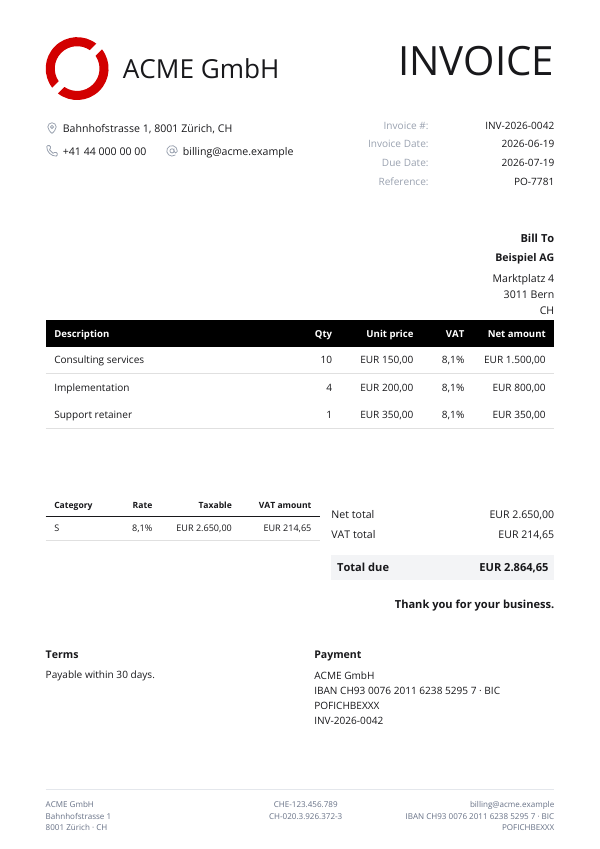 Classic Red
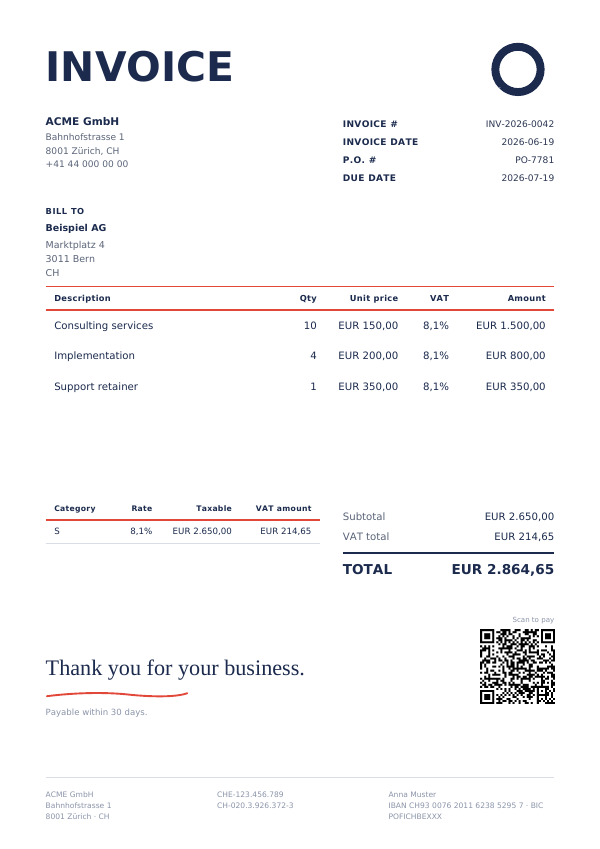 Neat
Neat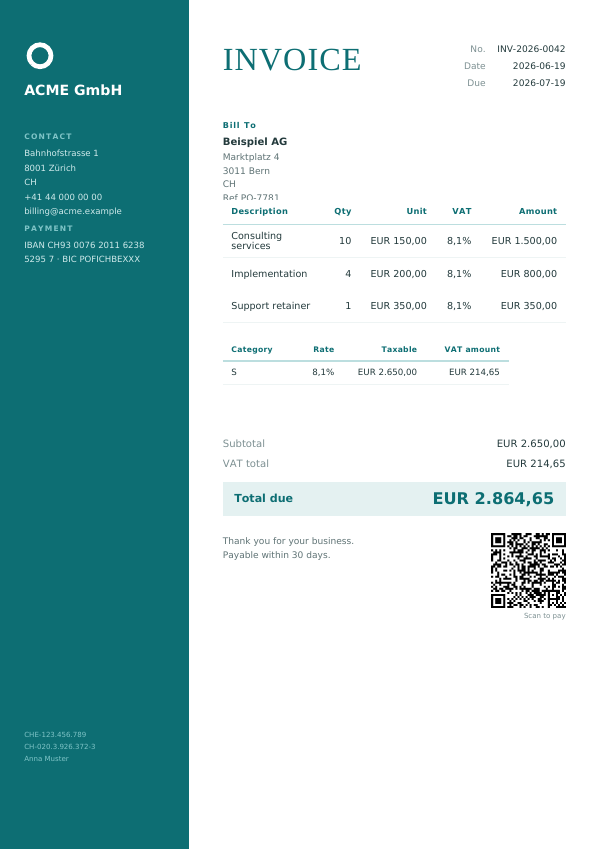 Teal Panel
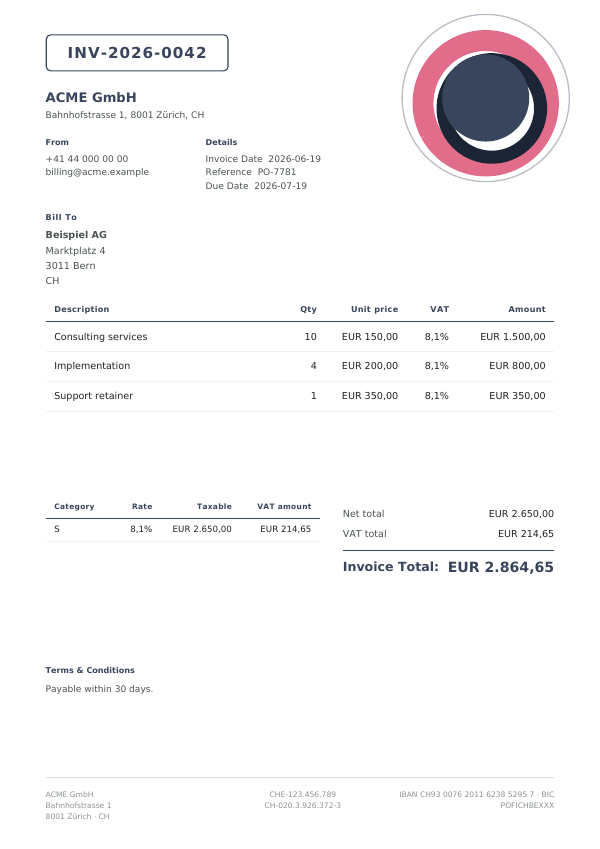 Slate Rose
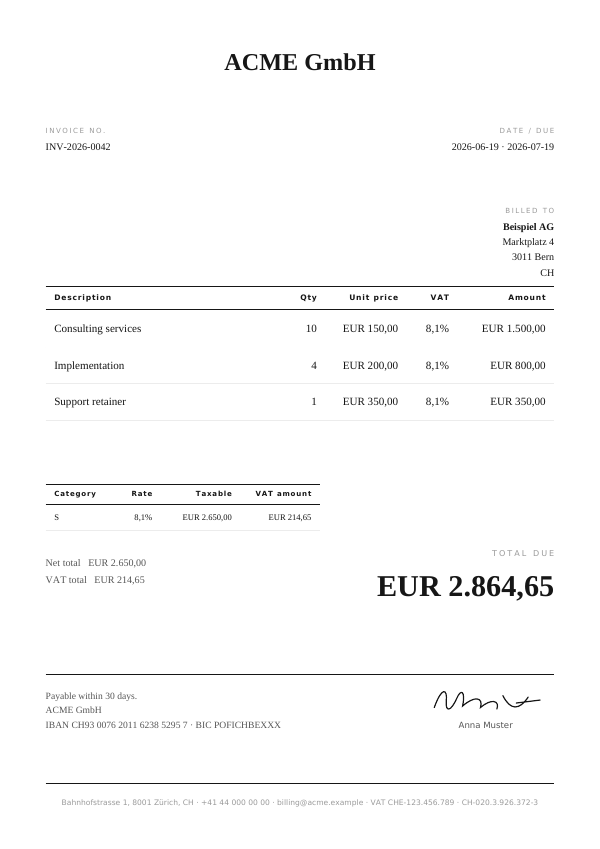 Editorial
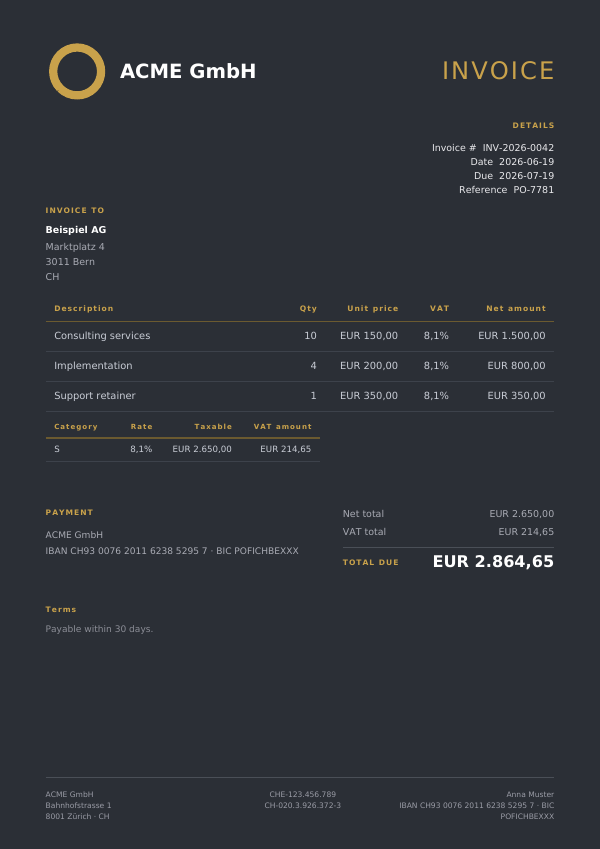 Dark & Gold
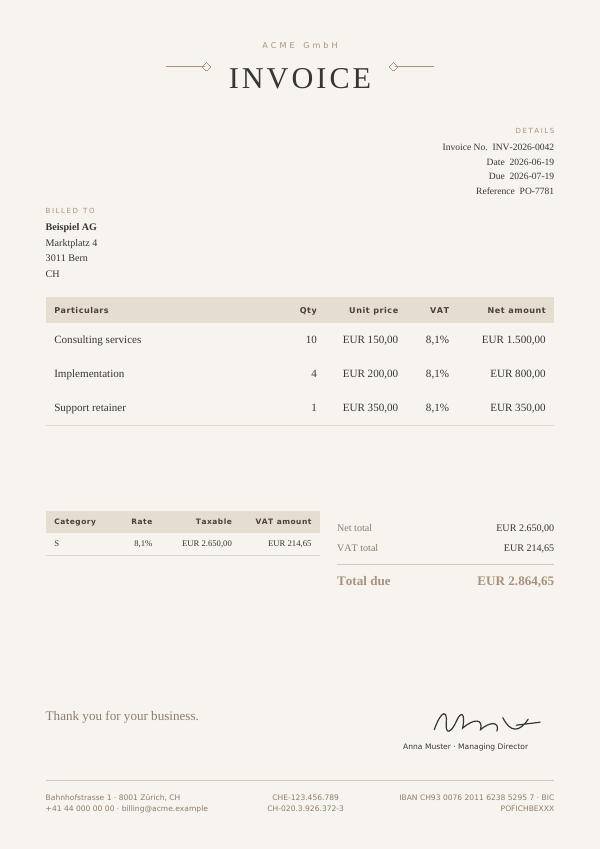 Elegant Taupe
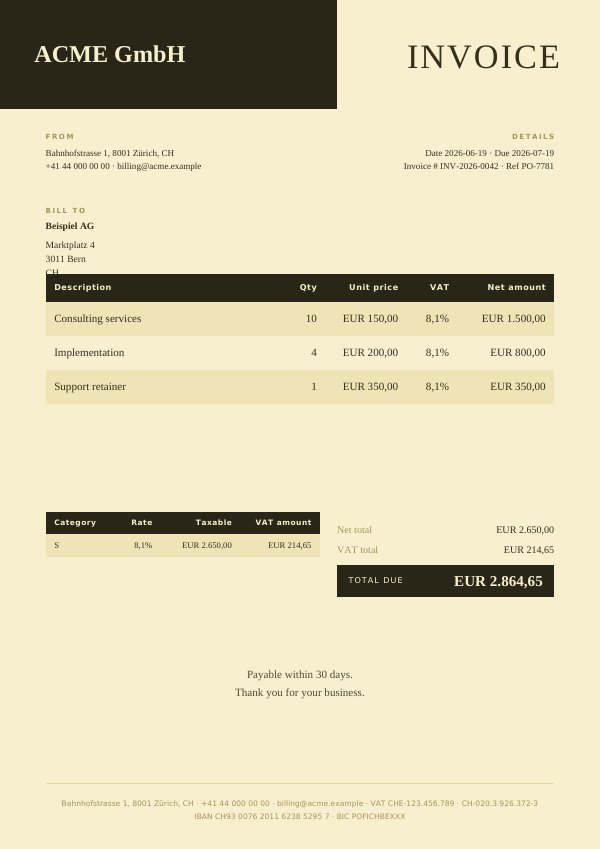 Warm Amber
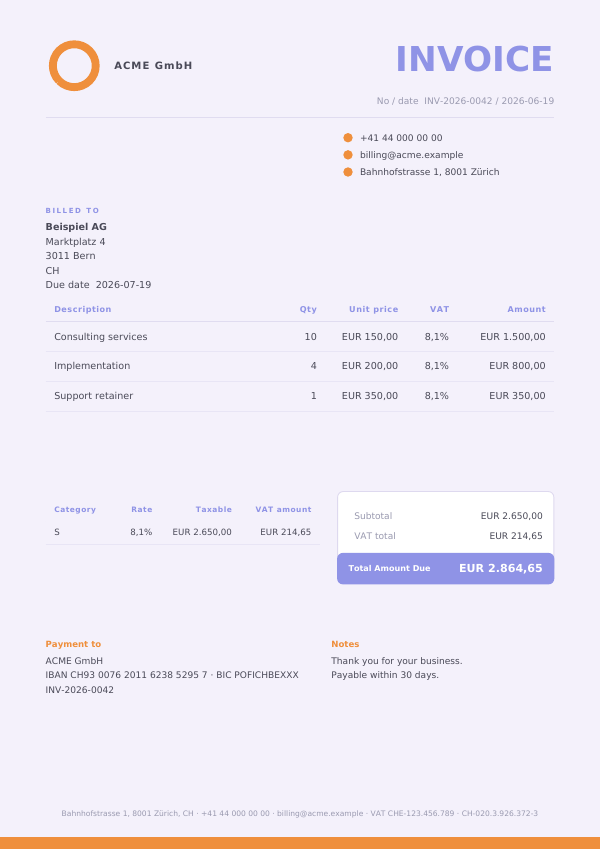 Lavender
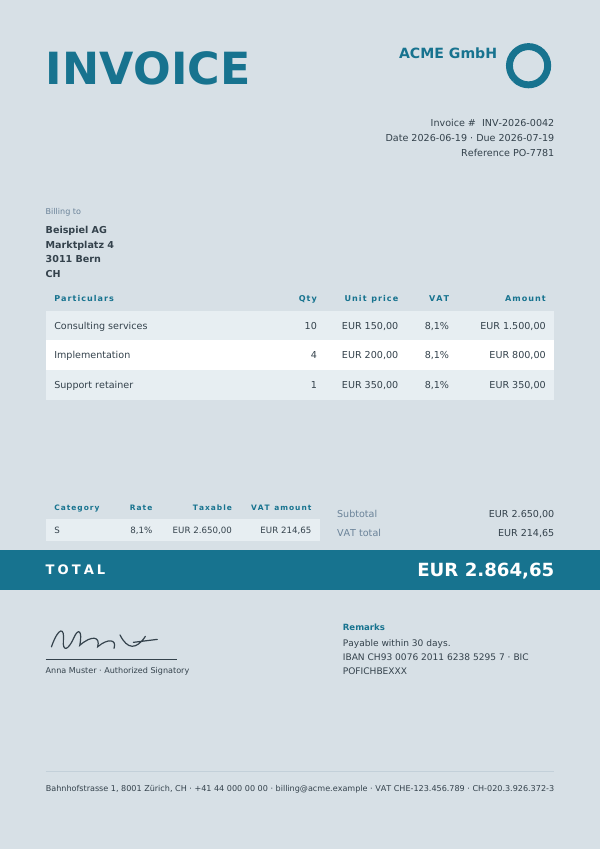 Steel Blue
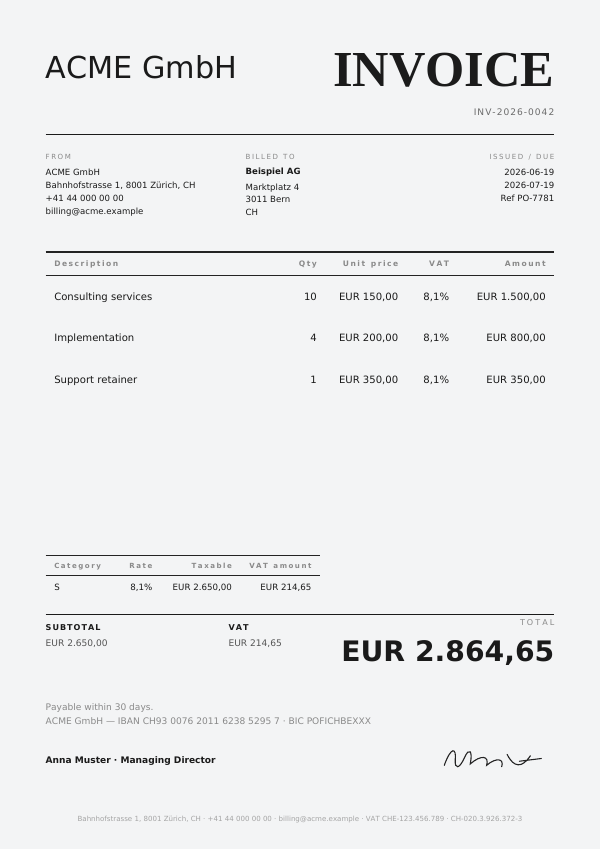 Minimal Wordmark
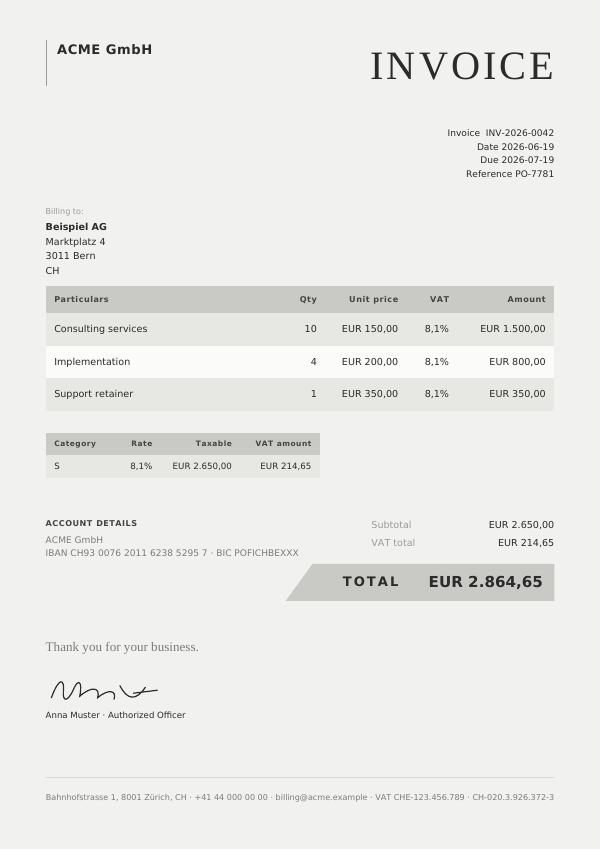 Angled Slate
Create a template
In the dashboard, open PDF templates and choose New template. Pick a starter design (or Blank), give it a name, adjust the layout, and save. Everything is scoped to your organization.
To start from an existing design instead of a blank layout, use Clone on that template’s row in the list. It immediately saves an editable copy named <name> (copy); open the copy with Edit to change it. The original is untouched, and the copy is a fully independent template with its own short id, so referencing it from the API means passing the copy’s short id.
The editor is a visual designer: drag fields onto the page, resize them, set fonts and colours. Invoice data goes in through placeholders inside read-only text fields; the line-item table, the payment QR and your logo are placed as their own fields.
Fill in invoice data with placeholders
Write a placeholder in curly braces anywhere in a read-only text field and Beliq replaces it with the value from the real invoice when the PDF is generated. One field can mix several placeholders with your own text, so a whole address block or a labelled VAT line is a single field to position:
{sellerName}
{sellerStreet}
{sellerPostalCode} {sellerCity}
VAT: {sellerVatId}
Clicking a value in the editor’s field palette inserts such a field ready-made; edit its content to combine values. The palette groups its fields by topic (document, seller, buyer, lines, VAT, totals, payment). It leads with the individual values, so the four party blocks below ({seller}, {buyer}, {sellerAddress}, {buyerAddress}) are not offered there: type them into a read-only text field yourself. Every other placeholder name is in the palette.
The field must be read-only. That is what marks its content as fixed text to fill in rather than a data slot; palette-inserted fields already are. Saving checks every placeholder, so a typo like {sellerCityy} errors at save instead of printing braces on an invoice.
An empty value renders as nothing. For a postal address that also skips empty lines (no gap when there is no second street line), use a block placeholder:
| Block placeholder | Renders |
|---|---|
{sellerAddress} / {buyerAddress} |
Full postal address: street lines, postal code and city, country |
{seller} / {buyer} |
Name, full postal address, VAT id and email as one block |
{sellerImprint} |
One-line footer imprint: address, phone, email, VAT id, registration, joined with ·; blank parts and their separator are dropped entirely |
{paymentAccount} |
IBAN … · BIC …; the whole field is empty when no IBAN is set, so no orphan “IBAN” label appears |
{meta} |
Invoice number, issue and due dates, delivery date, invoicing period, buyer reference; a line is left out when the invoice has no value for it |
{totals} |
Net, VAT and gross totals |
{payment} |
IBAN / BIC payment instructions |
Block fields drop both the value and any associated label or separator when the underlying data is absent. So a footer field with {sellerImprint} never prints a stray · when the phone number is missing, and {paymentAccount} leaves no “IBAN” label if the seller has no IBAN configured.
More broadly, the visible page may contain presentational elements (a logo, a notes field, a “Scan to pay” QR) that have no equivalent in the embedded XML. That is by design: the rule is non-contradiction, not containment. The PDF face must not show different amounts, parties or dates than the XML; it may show extras that the XML does not carry.
Beyond invoice data, pdfme provides {currentPage} and {totalPages} (see page numbers below) and {date} / {dateTime}, the date the PDF is generated.
Line items, VAT breakdown, payment QR, logo
Three things are fields of their own rather than placeholders: items (the auto-paginating table of invoice lines), vatBreakdown (the per-rate VAT table) and paymentQr (a scannable SEPA payment QR code, covered in QR codes below). Insert them from the palette; they bind by field name.
Add a logo by placing an Image field and uploading PNG or JPEG artwork into it.
Fonts
Text fields offer a fixed set of fonts, embedded into the generated PDF:
| Font | Character |
|---|---|
| Roboto (default) / Roboto Bold | Neutral sans-serif |
| Open Sans / Open Sans Bold | Humanist sans-serif, easy to read at small sizes |
| Liberation Serif / Liberation Serif Bold | Classic serif, metrically compatible with Times New Roman |
| DejaVu Sans / DejaVu Sans Bold | Widest character coverage (Latin extended, Greek, Cyrillic) |
If your invoices carry names or addresses with less common characters, DejaVu Sans is the safest choice.
QR codes
The designer has two barcode field types you can drag onto the page: a QR code (2D, field type qrcode) and a Code 128 linear barcode (code128). Both render as sharp vector graphics, so they stay crisp at any zoom or print size. There are two ways to use a QR code, depending on whether its content is fixed or comes from each invoice.
A fixed QR code
Place a QR code field, mark it read-only, and type its content straight into the designer: a link to your customer portal, your website, a support address, a plain text note, anything. Beliq prints that content on every invoice. Curly braces in it are placeholders, as in a read-only text field: a known one such as {invoiceNumber} is filled in from each invoice, and any other brace is refused when you save. Use this for anything that is the same across all your invoices.
Style it from the field’s panel with barColor for the modules (default black) and backgroundColor for the quiet zone (default white). Keep strong contrast and a bit of white margin around the code so scanners read it reliably.
A scannable bank-transfer QR (SEPA)
The paymentQr field is the working payment use case. Instead of fixed content, Beliq fills it per invoice with a GiroCode, the EPC069-12 SEPA credit-transfer code that essentially every European banking app recognizes. Your customer scans it and their banking app opens a transfer already pre-filled with your IBAN, your name, the invoice total, and the invoice number as the reference. No manual typing, no transposed account digits.
Insert it from the field palette’s Payment group, or start from a template that already places it: the Neat and Teal panel starters both include a “Scan to pay” QR. It binds by the field name paymentQr, so keep that name.
Beliq only fills the code when the invoice asks your customer to pay you its total by credit transfer, and the code can carry exactly the total the page prints. All of these must hold:
| Requirement | Why |
|---|---|
| Currency is EUR | The EPC / SEPA credit-transfer scheme is euro-only by specification |
The invoice carries a seller IBAN (paymentMeans.iban) |
The creditor account the money goes to |
| A seller name is present | The creditor name the banking app shows |
The payment means is a credit transfer: paymentMeans.typeCode 30 or 58, and italy.modalitaPagamento MP05 when you send it |
The code starts a credit transfer; a direct debit or a card payment needs none |
The document is a plain invoice: not documentType: "creditnote", typeCode absent or 380, italy.tipoDocumento TD01, spain.invoiceDocumentType FC and spain.invoiceClass OO when you send them |
On a credit note your customer does not pay you, and for other document kinds no source says what the code should ask for |
No paidAmount or roundingAmount other than 0 |
The code asks for the total the page prints, which is then the amount due |
No payee |
The page names you over the IBAN, while the money goes to the payee |
| Gross total is above 0, at most 999,999,999.99, and has at most two decimals | The encodable range of the EPC amount field, carried unrounded |
When Beliq fills the code it encodes the seller name, IBAN, the BIC if you supplied one, the gross total, and Invoice <number> as the remittance reference. When any requirement is not met (a USD invoice, a credit note or one with no IBAN, for example) the field stays blank, so a paymentQr field is safe to leave in a template you also use for those invoices. Keep the field editable, as the palette and the starters insert it: a read-only paymentQr field prints its own content on every invoice and never gets the code.
Content and Page
The editor has two tabs that switch what you are editing.
Content is the main invoice body: the title, parties, the line-item table, totals, payment block. This is the part that flows onto more pages when a long invoice does not fit on one page.
Page is everything that repeats on every page, no matter how many pages the invoice grows to: page margins, page numbers, a footer, a logo, a watermark. The line-item table paginates through the Content layer, but a footer or page number only appears on every page if it lives on the Page layer.
Elements on the Page layer can sit anywhere, including in the margin band, so a footer at the very bottom edge or a logo in a corner both work.
Page numbers
Add a text field on the Page tab with the content Page {currentPage} of {totalPages} and keep it read-only (the same placeholder syntax as invoice data). Beliq fills in the numbers per page at generation time (Page 1 of 3, Page 2 of 3, and so on). On a single-page invoice it renders Page 1 of 1.
Page margins
Margins (top, right, bottom, left, in millimetres) are a page-level setting, so they live on the Page tab. They control where the Content body sits; the Page layer itself can still reach into the margin band, which is how a footer sits below the body.
Preview and save
Preview renders the current template against sample data so you can check the layout before saving. Save stores the template on your organization.
Use a template from the API
Each saved template shows a short ref (a k3d-9mp-style code) next to its name in the list; click it to copy. Pass that ref as pdfTemplateId on POST /v1/generate:
{
  "standard": "zugferd",
  "profile": "en16931",
  "output": "pdf",
  "pdfTemplateId": "k3d-9mp",
  "invoice": { }
}
pdfTemplateId takes precedence over template. Because templates are org-scoped, the request must be authenticated with your API key. If the ref is wrong or the request is unauthenticated you get a PDF template error.
Notes and limits
- Page size is A4 (210 x 297 mm). The built-in layout and the starter footer / page-number fields are positioned for A4.